One of the most underrated productivity boosts in SharePoint Framework development is the ability to share reusable SPFx components across multiple projects.
Instead of copying code between solutions or maintaining private Git repositories for shared code, the cleanest approach is:
- Publish reusable SPFx components as private NPM packages
- Host them in your Azure DevOps Artifacts feed
- Consume them like any other NPM dependency
This works whether you’re using:
- SPFx 1.5.1 (SharePoint Subscription Edition / on-prem)
- SPFx 1.11 – 1.18 (SharePoint Online)
- Azure DevOps Services (cloud)
- Azure DevOps Server (on-prem, formerly TFS)
In this post you’ll learn:
- Why use a private NPM registry
- How to set up a DevOps NPM feed
- How to authenticate NPM on developer machines
- How to publish your own SPFx component libraries
- How to consume the package in existing SPFx solutions
Why Use a Private NPM Repository for SPFx?
Most SPFx projects contain similar logic:
- Utility functions
- Custom field controls
- Shared property pane controls
- Helper services
- Common React components
- Branding elements
- Business-specific frameworks
Maintaining these across multiple solutions quickly becomes painful.
A DevOps-hosted NPM feed solves that:
One central source of truth
Developers import shared components as dependencies.
Versioning built-in
Use npm version patch/minor/major to release updates.
Cleaner SPFx projects
Instead of /src/common/ copied 5 times, everything becomes a dependency.
Works for both SPFx Online and SPFx On-Prem
No version locking required — your library can target older or newer SPFx.
Step 1 — Create an NPM feed in Azure DevOps
- Open Azure DevOps
- Go to Artifacts
- Click New Feed
- Name it something like:
spfx-components
spfx-utilities
company-spfx-libraries
- Choose Visibility:
- Project-scoped if only one project needs it
- Organization/Collection-scoped if many SPFx solutions share components
- Enable Upstream Sources if you want npmjs fallback (optional)
Done! Your private registry is now ready.
Step 2 — Configure authentication on developer machines
Option A: DevOps Cloud (recommended)
- Install
Azure Artifacts Credential Providernpm install -g vsts-npm-auth - Run:
vsts-npm-auth - Done — tokens auto-refresh!
Option B: DevOps Server (on-prem)
On-prem uses Basic Auth (username + PAT), not OAuth or PAT headers.
Each developer must:
- Create a Personal Access Token with:
- Packaging → Read (for install)
- Packaging → Read & Write (for publish)
- Encode the token in Base64:
[Convert]::ToBase64String([Text.Encoding]::UTF8.GetBytes("YOUR_PAT")) - Add this to %USERPROFILE%.npmrc
Example://tfs.mycompany.se/tfs/DefaultCollection/_packaging/spfx-components/npm/registry/:username=DefaultCollection //tfs.mycompany.se/tfs/DefaultCollection/_packaging/spfx-components/npm/registry/:_password="BASE64_ENCODED_PAT" always-auth=true
This file must not be committed to Git.
Step 3 — Prepare your SPFx component library for publishing
A reusable SPFx package is typically a:
- React component library
- TypeScript utility library
- Reusable web part logic
- Property pane controls
Your package.json should declare React & SPFx as peerDependencies, so the consuming project provides them. You might also need devDependencies if your code/components are dependent on other libraries for build.
{
  "name": "@company-spfx/components",
  "version": "1.0.0",
  "main": "lib/index.js",
  "types": "lib/index.d.ts",

  "peerDependencies": {
    "@microsoft/sp-core-library": ">=1.5.0",
    "@microsoft/sp-webpart-base": ">=1.5.0",
    "react": ">=16.8.0",
    "react-dom": ">=16.8.0"
  }
}
Use a simple build setup:
npm run build
where build runs:
"build": "tsc -p tsconfig.json"
No SPFx bundling, no manifests — this is just a TypeScript library.
Step 4 — Publish your package to DevOps
The project-level .npmrc instructs npm to use your feed:
@company-spfx:registry=https://tfs.mycompany.se/tfs/DefaultCollection/_packaging/spfx-components/npm/registry/
Then publish:
npm version patch
npm publish
If everything is configured correctly, you will see:
+ @company-spfx/components@1.0.1
Your component is now available for the whole team.
Step 5 — Consume your shared SPFx package
In any SPFx solution, add this to .npmrc:
@company-spfx:registry=https://tfs.mycompany.se/tfs/DefaultCollection/_packaging/spfx-components/npm/registry/
always-auth=true
Then install the shared package:
npm install @company-spfx/components --save
Use it like any other import:
import { MyComponent } from '@company-spfx/components';
Everything bundles naturally with SPFx.
Which components should you share this way?
Perfect candidates include:
UI Components
- Banner/hero components
- Dynamic forms
- Buttons, cards, accordions
- Field controls
Data / Business Logic
- API services
- Utilities
- Business rules
- Reusable hooks (SPFx ≥ 1.12)
Content & Branding
- Icons
- Themes
- Helpers for Fluent UI
If you reuse it twice, publish it once.
Versioning strategy (recommended)
Use semantic versioning:
- Patch: bugfixes
- Minor: new features backwards compatible
- Major: breaking changes
Developers upgrade via:
npm update @company-spfx/components
Or pin versions:
"@company-spfx/components": "^1.2.0"
Sample project
I have created a package for a DynamicForm component that I use in SharePoint Subscription Edition. The project structure looks like this:
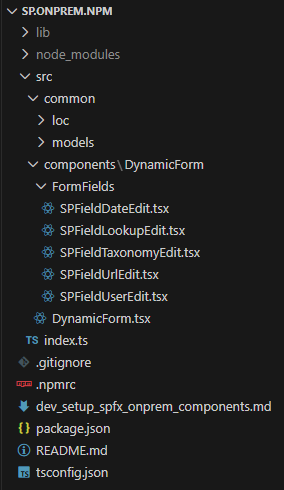
The package.json for this project has some devDependencies so that it can be built and published.
{
    "name": "@mycompany-spfx/spfx-onprem-components",
    "version": "1.0.1",
    "description": "Components for SharePoint On-Premises SPFx solutions",
    "private": false,
    "main": "lib/index.js",
    "types": "lib/index.d.ts",
    "scripts": {
        "build": "tsc -p tsconfig.json",
        "clean": "rimraf lib",
        "prepublishOnly": "npm run clean && npm run build"
    },
    "peerDependencies": {
        "@microsoft/sp-core-library": "1.5.1",
        "@microsoft/sp-webpart-base": "1.5.1",
        "@microsoft/sp-http": "1.5.1",
        "@microsoft/sp-loader": "1.5.1",
        "@pnp/spfx-controls-react": "^1.14.0",
        "office-ui-fabric-react": "^5.134.0",
        "react": "15.6.2",
        "react-dom": "15.6.2"
    },
    "devDependencies": {
        "typescript": "2.4.2",
        "@types/react": "15.6.6",
        "@types/react-dom": "15.5.6",
        "rimraf": "^2.7.1",
        "@microsoft/sp-core-library": "1.5.1",
        "@microsoft/sp-webpart-base": "1.5.1",
        "@microsoft/sp-http": "1.5.1",
        "@microsoft/sp-loader": "1.5.1",
        "@pnp/spfx-controls-react": "^1.14.0",
        "office-ui-fabric-react": "^5.134.0",
        "react": "15.6.2",
        "react-dom": "15.6.2"
    },
    "publishConfig": {
        "registry": "https://tfs.mycompany.se/tfs/DefaultCollection/VLL/_packaging/spfx-onprem-components/npm/registry/"
    }
}
Summary
Setting up a private NPM repository for SPFx gives you:
- A clean shared-component architecture
- Version control for your reusable code
- Faster development
- Fewer bugs and less duplication
- Better long-term maintainability
Azure DevOps Artifacts works beautifully with SPFx — whether you’re running SPFx 1.5.1 on-prem or the latest SPFx for SharePoint Online.
If you’re building more than one SPFx solution, this setup will quickly become indispensable.
 umeaworks